OkMap Video Tutorials for GPX, GPS Maps, and Outdoor Navigation
Introduction
OkMap Desktop video tutorials show how to use GPS mapping software to plan hiking routes, create and edit GPX files, manage waypoints and points of interest, georeference raster maps, use DEM (Digital Elevation Model) data, and work with web maps and GPS devices.
Through practical step-by-step guides, you will learn how to prepare routes for hiking, trekking, mountain biking, search and rescue, and other outdoor activities, analyze GPS tracks, calculate distances and elevation gains, create Garmin Custom Maps, download maps for offline use, and visualize terrain in 3D.
The tutorials cover both basic functions and advanced OkMap tools, including web mapping, georeferencing, coordinate systems, SRTM and DEM elevation data, waypoint management, and GPX track handling, enabling you to make the most of the software for navigation, mapping, and terrain analysis.
OkMap tutorials are also available on the official YouTube channel .
Getting Started
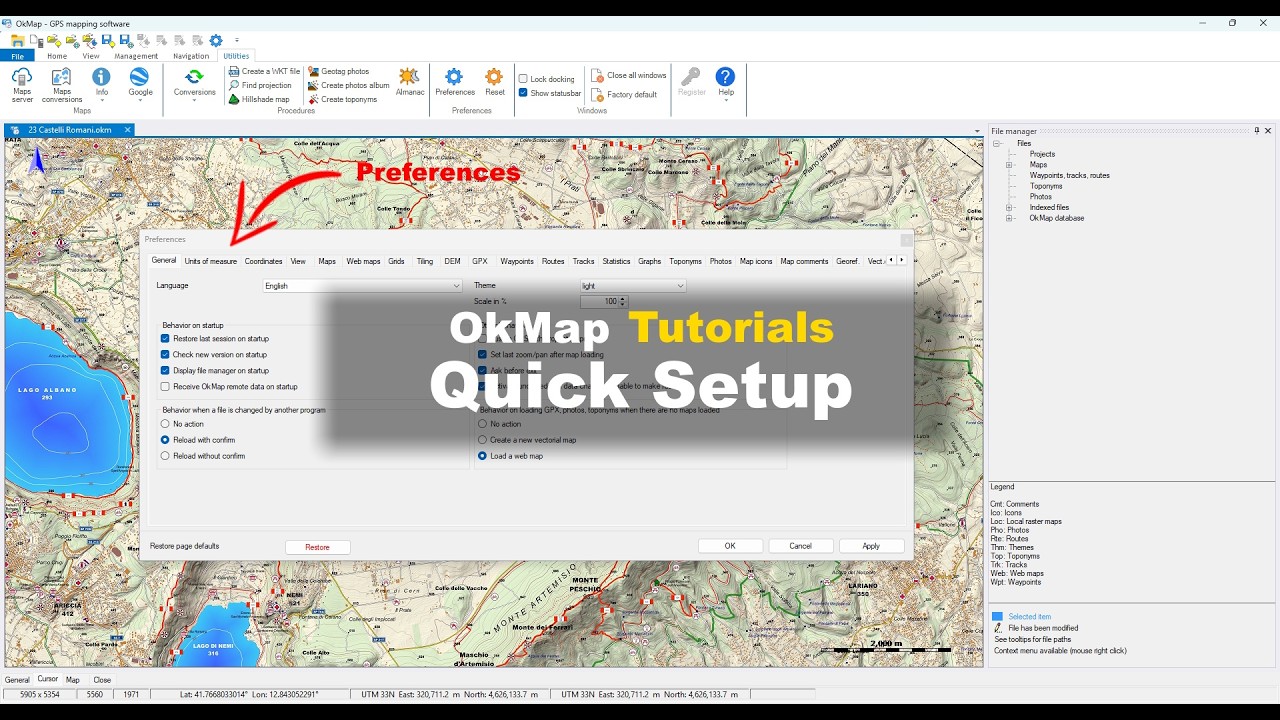
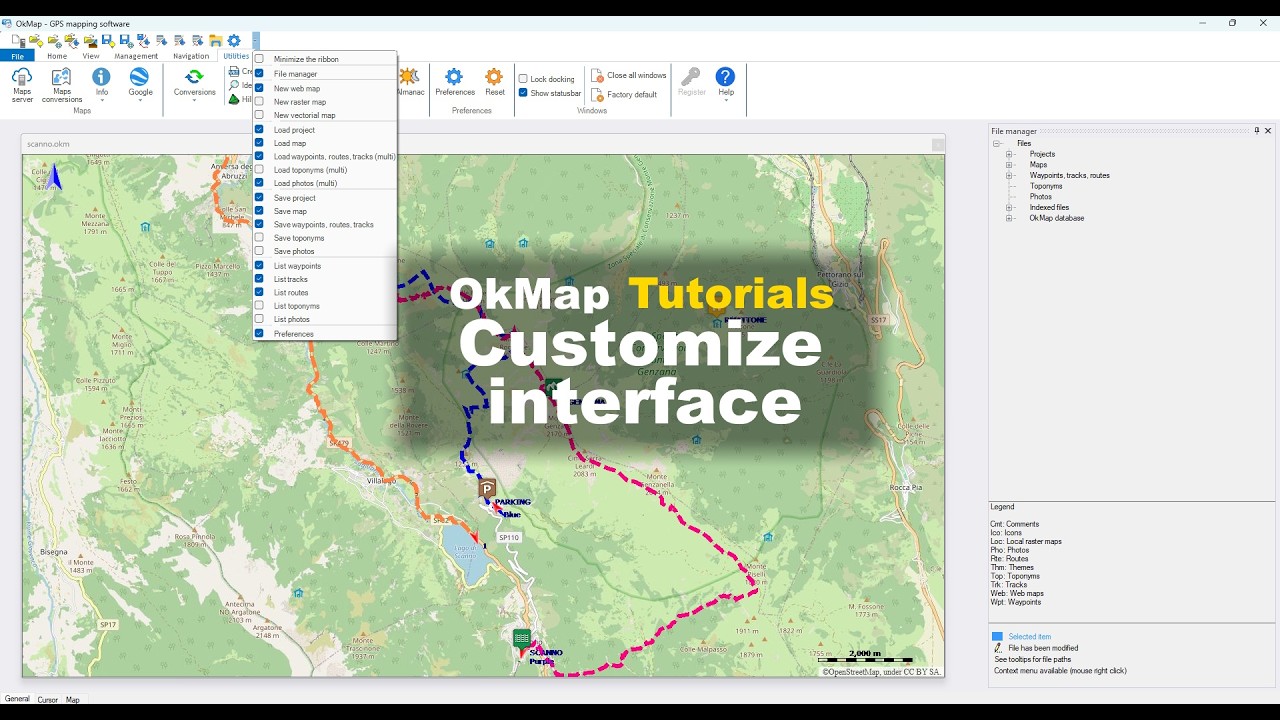
Learn the basic operations of OkMap, from the initial setup to viewing maps and GPS data.
These tutorials are ideal for getting started quickly and making the most of the software.
Navigate and Orient Yourself on the Map
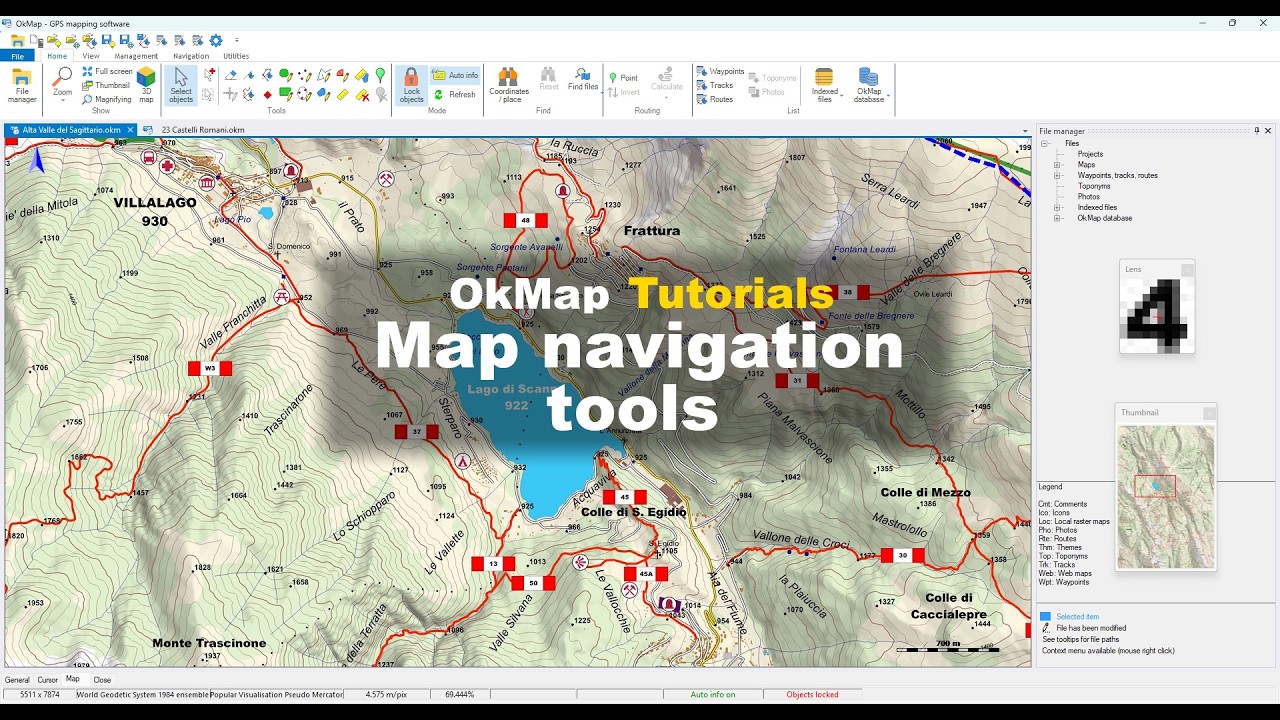
OkMap tutorial on how to navigate and orient yourself on the map.
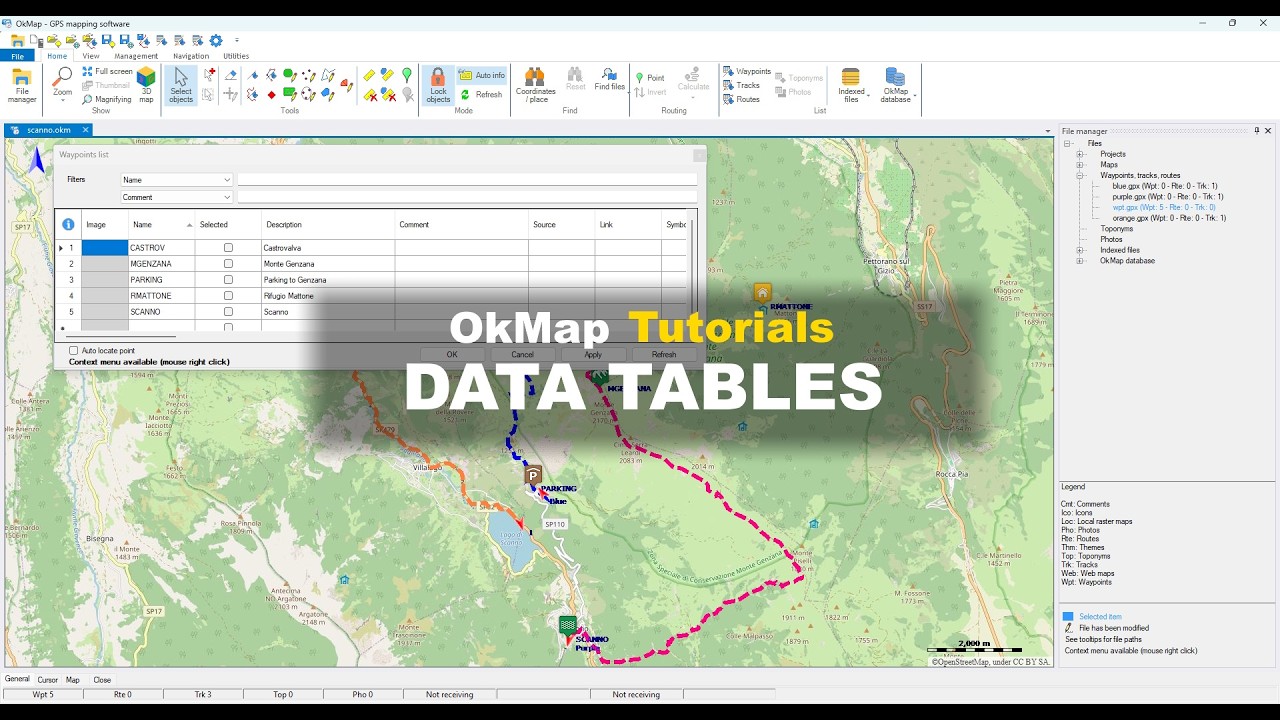
Web Maps and Online Services
Discover how to use web maps, online mapping services, OpenStreetMap maps, and thematic overlays
to explore the territory and plan your activities.
This section includes loading web maps, downloading offline maps, managing
overlays, and other advanced web mapping features.
Load Web Maps and OpenStreetMap
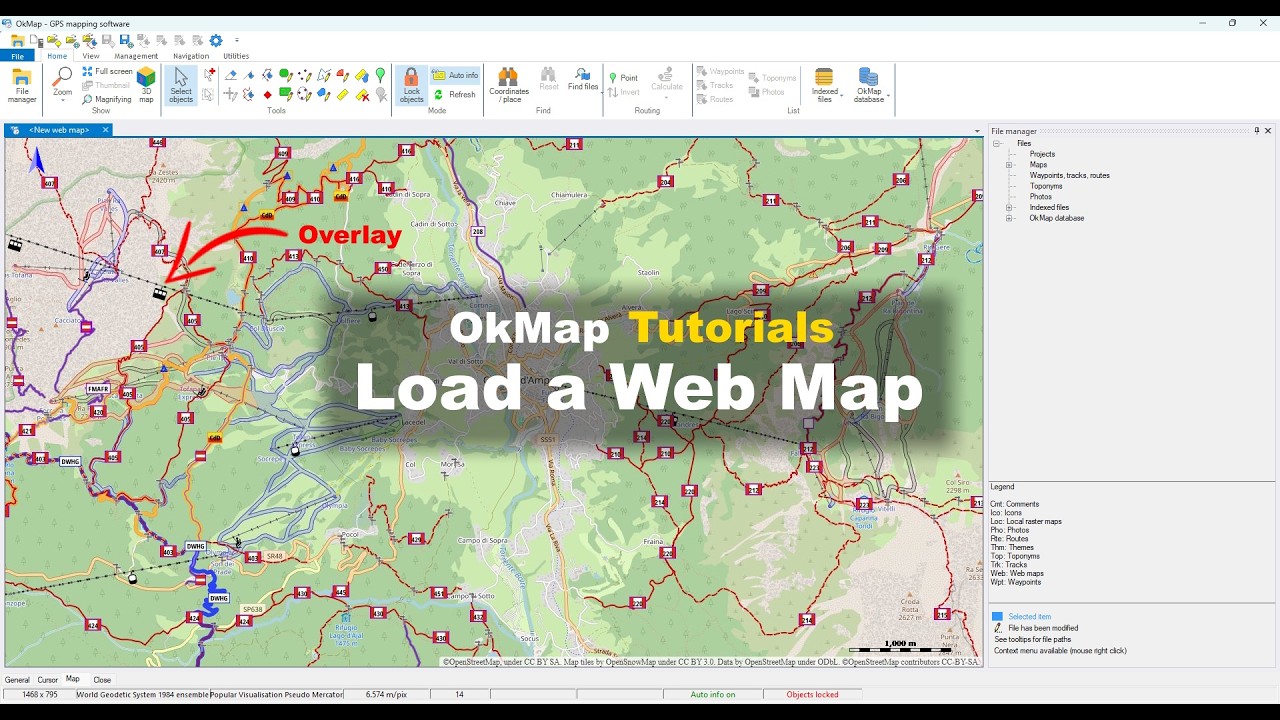
OkMap tutorial for loading web maps, using OpenStreetMap, geocoding, and map overlays.
How to Download Offline Maps with OkMap
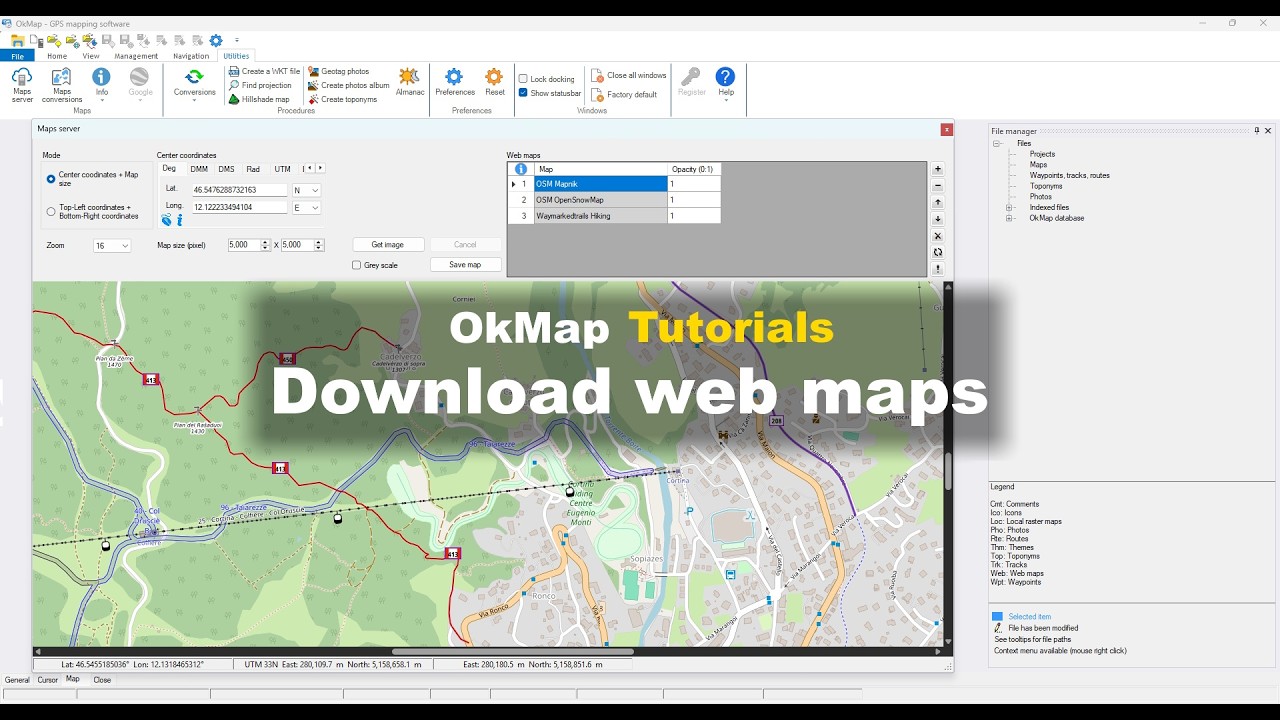
OkMap tutorial for downloading web maps and creating offline maps that can be used without an Internet connection.
Create and configure Tiled and WMS web maps
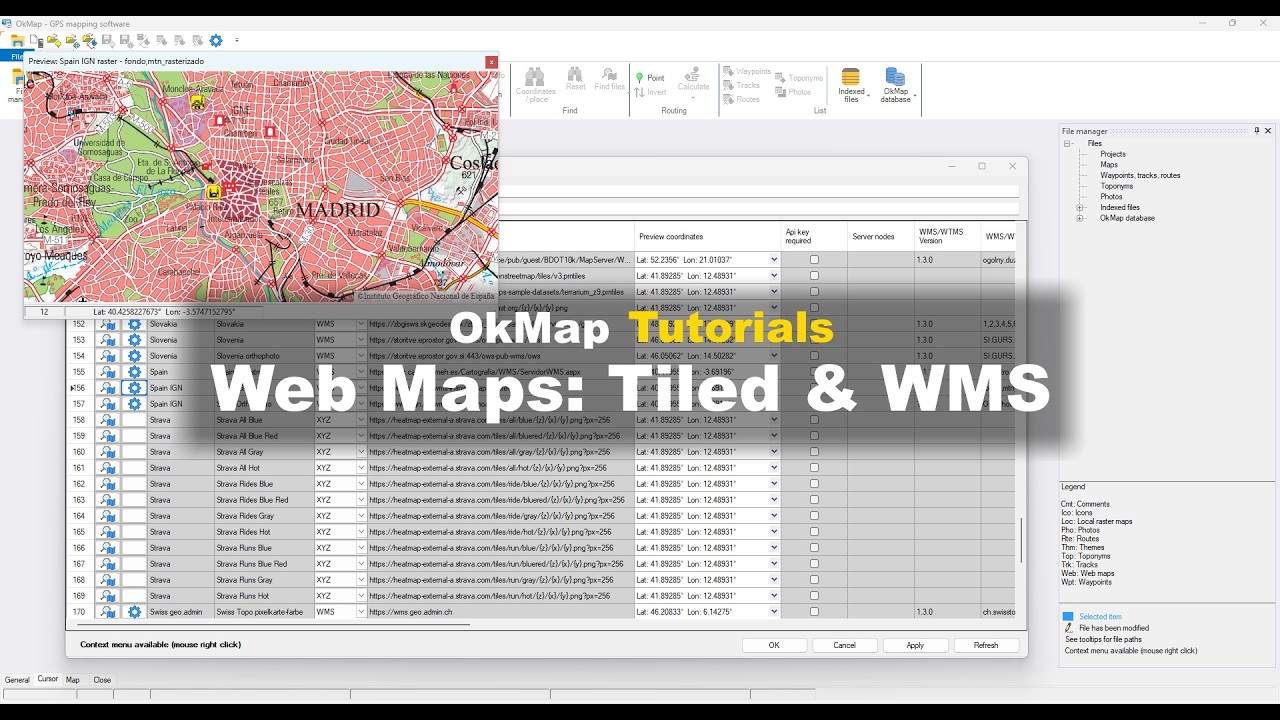
OkMap tutorial on how to create and configure Tiled and WMS web maps.
Raster maps and Georeferencing
Discover how to georeference raster maps, use CRS and EPSG coordinate systems, and create maps compatible with GPS devices.
This section also covers Garmin Custom Maps and other advanced mapping features.
Georeferencing a raster map
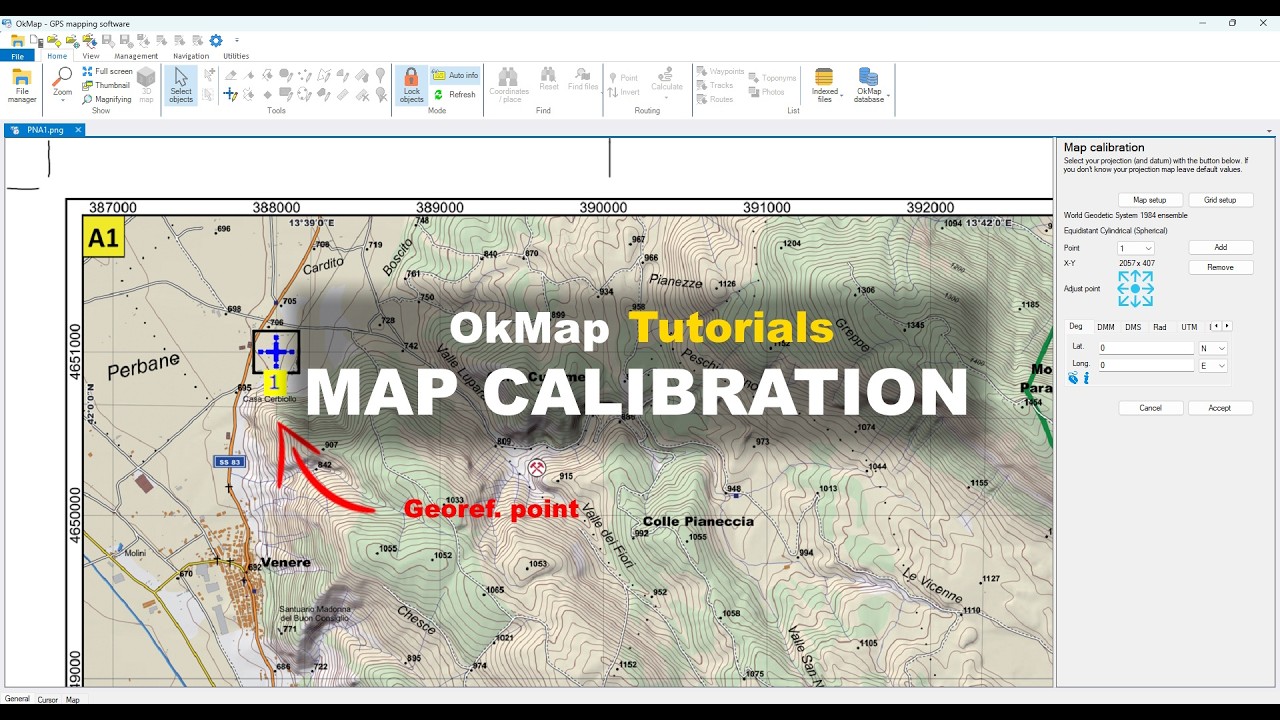
OkMap tutorial for georeferencing a raster map using control points and a coordinate reference system (CRS).
Display a Map, GPX Tracks, and Waypoints in 3D
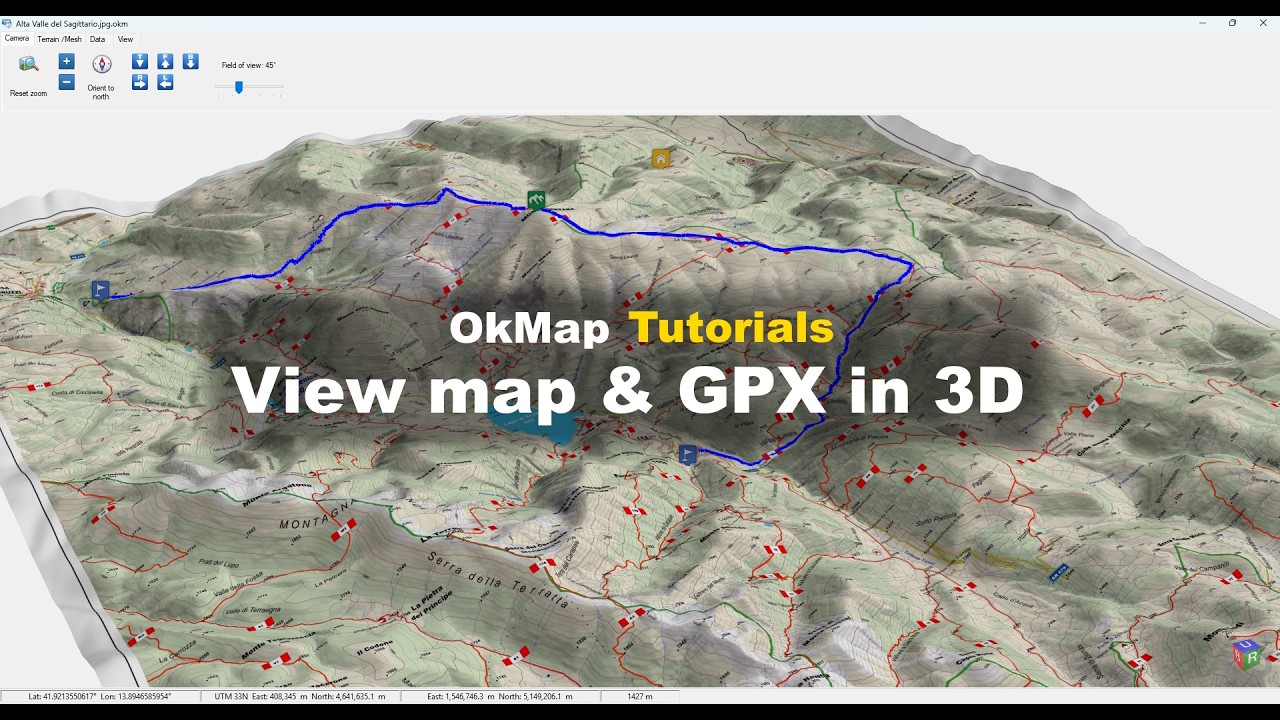
OkMap tutorial for exploring maps, GPX tracks, and waypoints in a 3D environment.
Creating a Garmin Custom Map
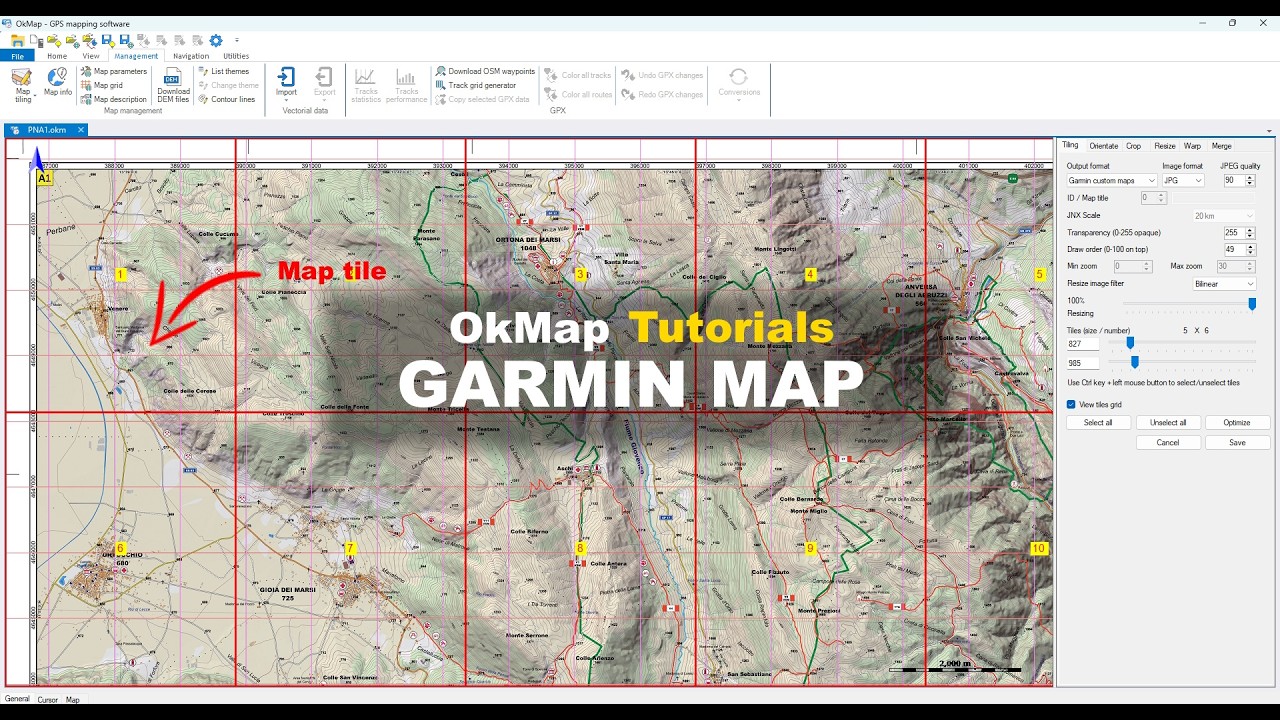
OkMap tutorial for creating a Garmin Custom Map (KMZ) from a georeferenced raster map.
GPS Tracks and GPX Files
Discover how to use OkMap as a GPX editor to create, edit, merge, clean, and analyze GPS tracks and GPX files.
Learn how to plan routes, correct errors, and obtain detailed information about distances, elevations, and travel times.
Plan GPX Routes for Hiking
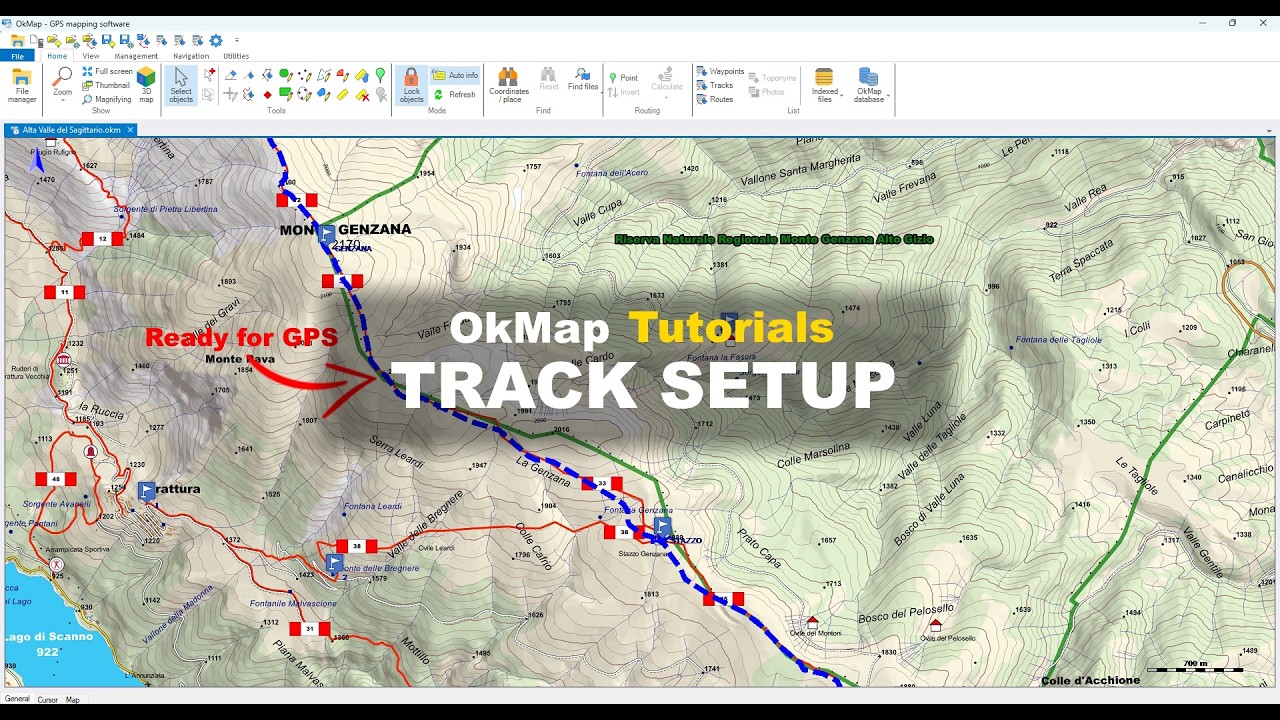
OkMap tutorial for preparing a hiking track using DEM data, elevation analysis and full statistics.
GPX Track Analysis and GPS Track Cleaning
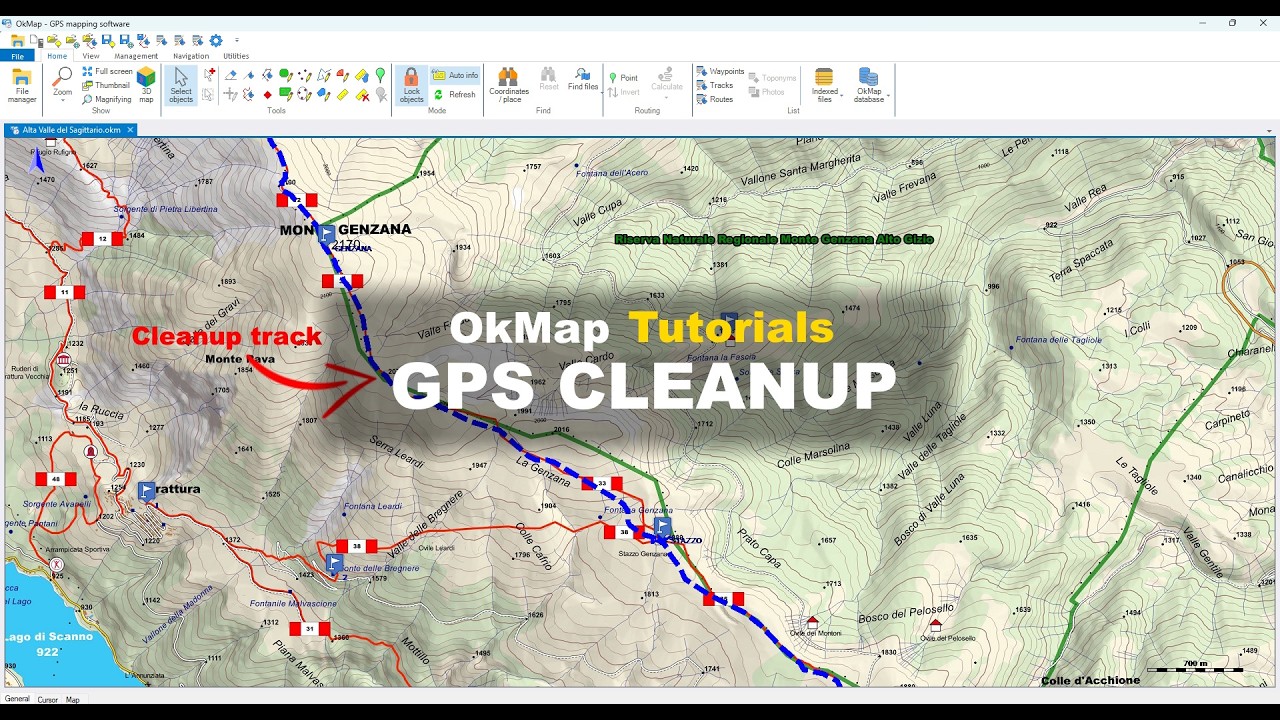
OkMap tutorial for importing, cleaning, and analyzing a GPS track recorded in the field using DEM data.
GPX Editor: Advanced GPX Track Editing
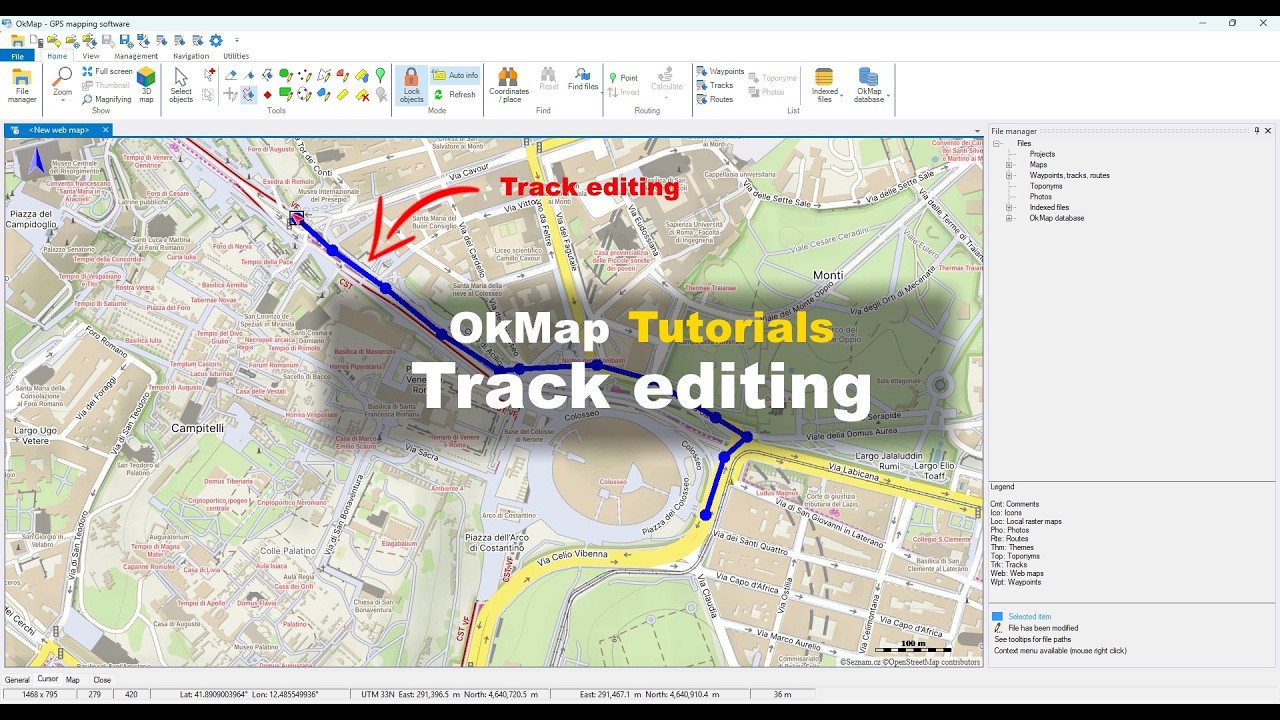
OkMap tutorial for editing GPX tracks using advanced GPX editing and route management tools.
Merging GPX and GPS Tracks
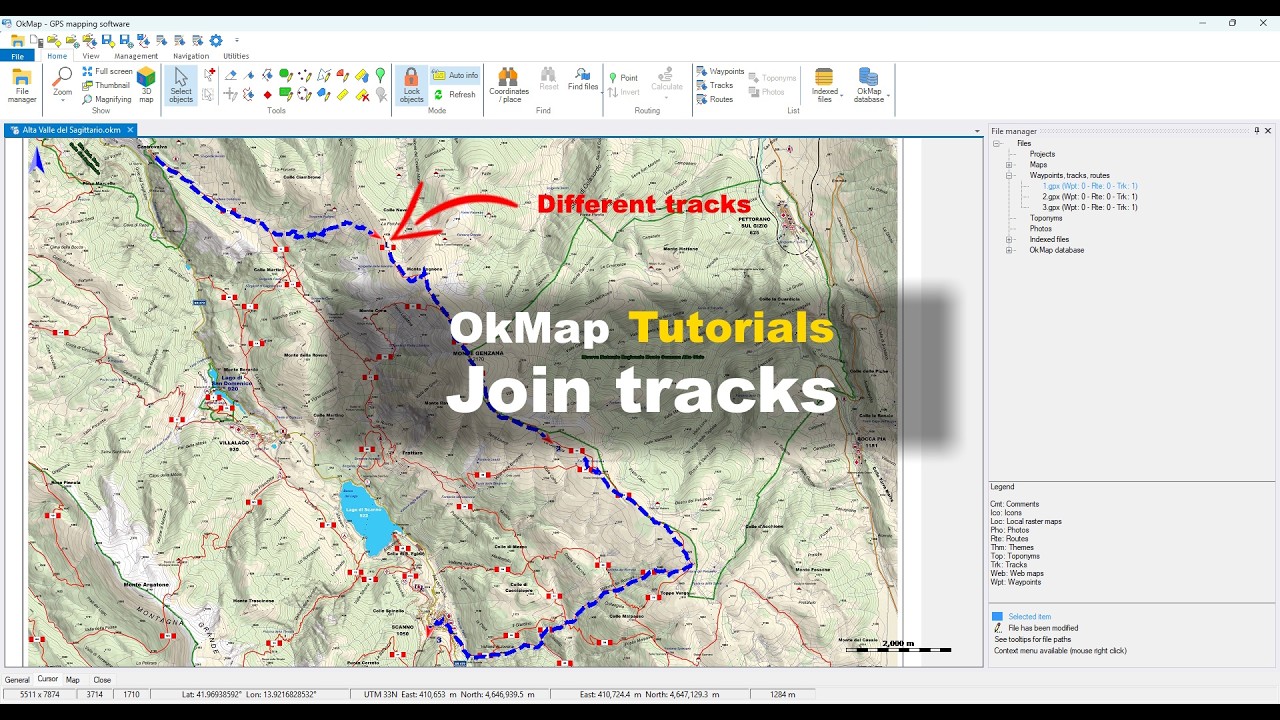
OkMap tutorial for merging multiple GPS tracks and GPX files into a single continuous route.
Merge GPX files and copy selected data
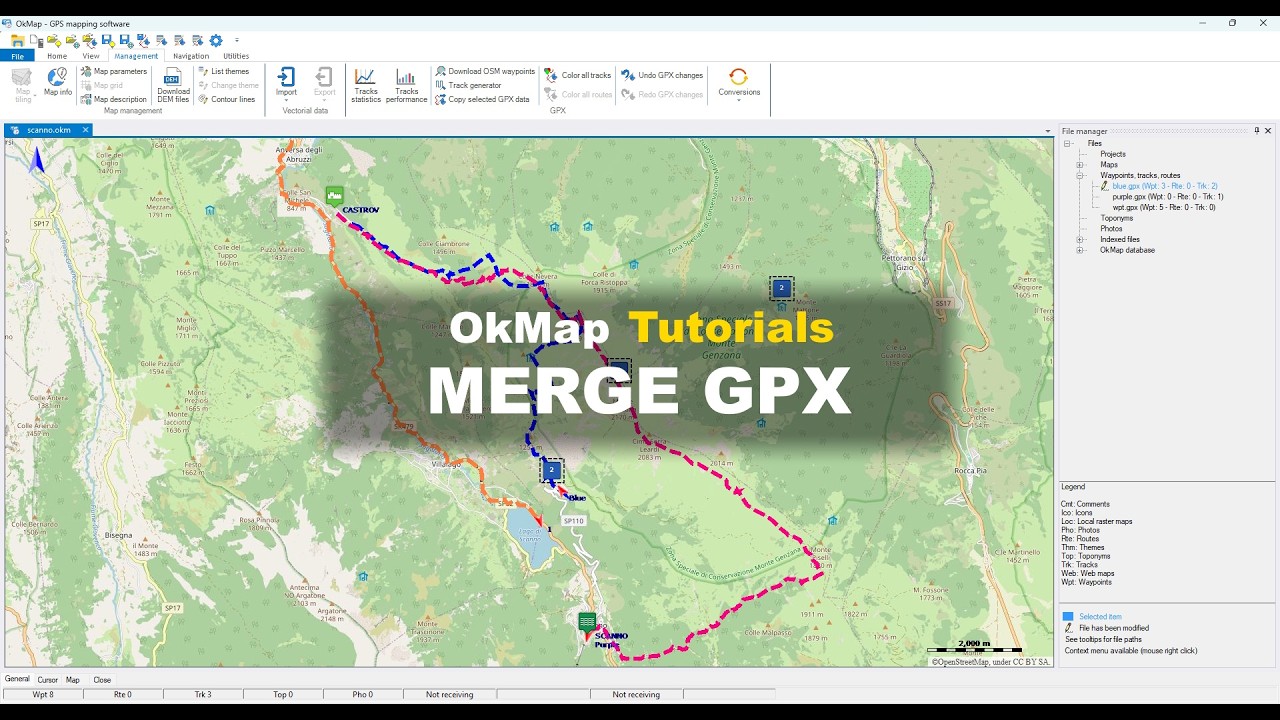
Tutorial on how to merge GPX files and copy selected GPS data between different files using OkMap.
Automatic GPS Track Generation
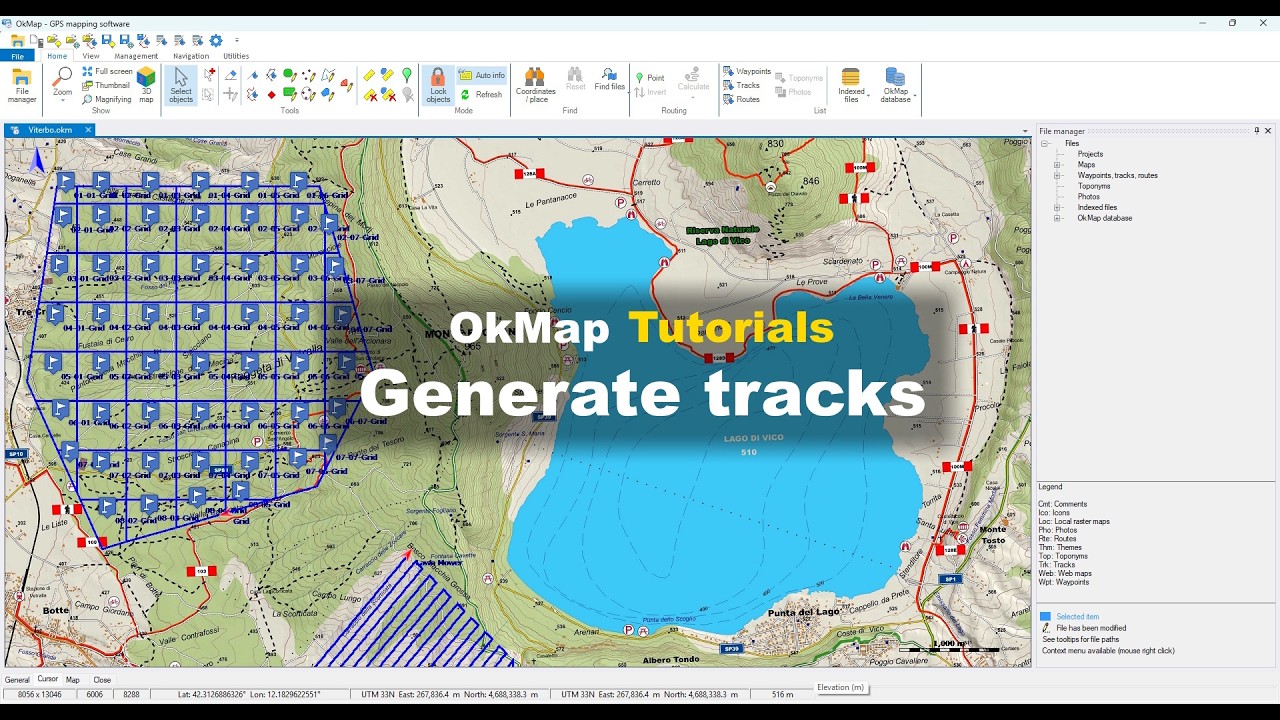
OkMap tutorial for automatically generating GPS tracks within an area using the Lawn Mower and Grid patterns.
Waypoints
Learn how to create, edit and organize waypoints and points of interest.
Waypoints help you identify important locations, landmarks and destinations along your routes.
GPS Waypoint Management
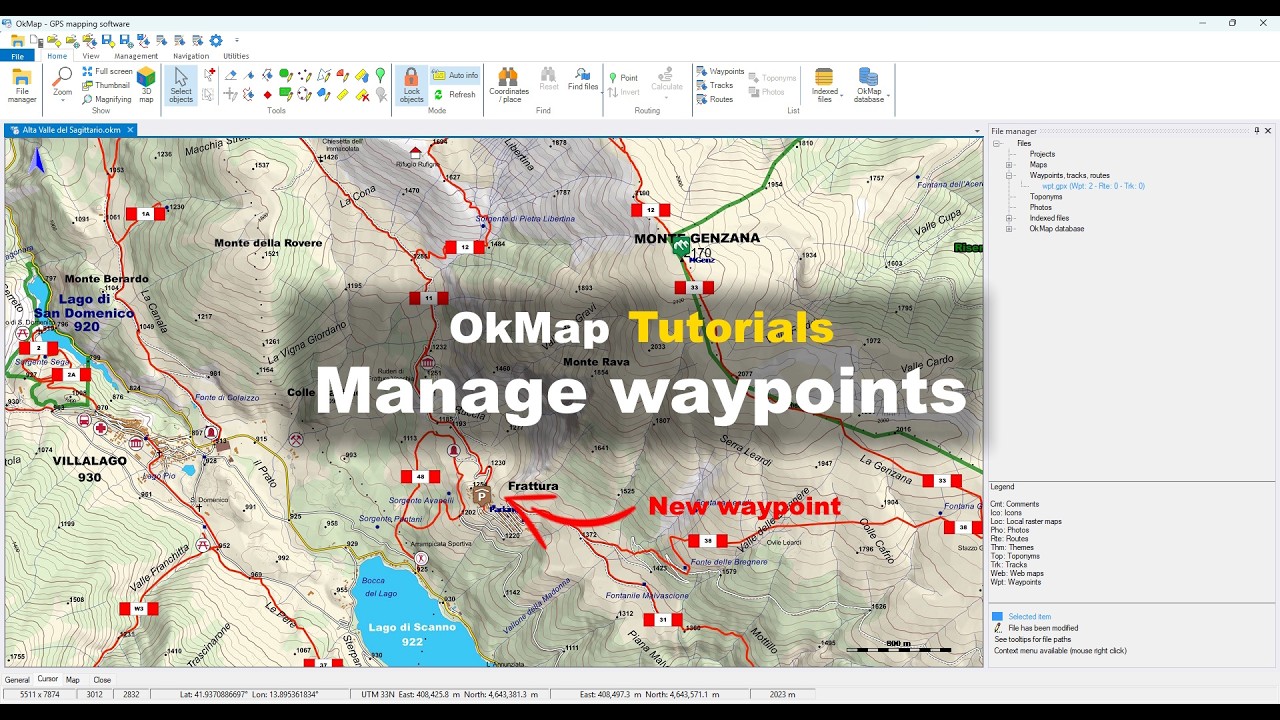
OkMap tutorial for creating, editing, and managing waypoints and points of interest (POIs).
Advanced GPS Waypoint Management
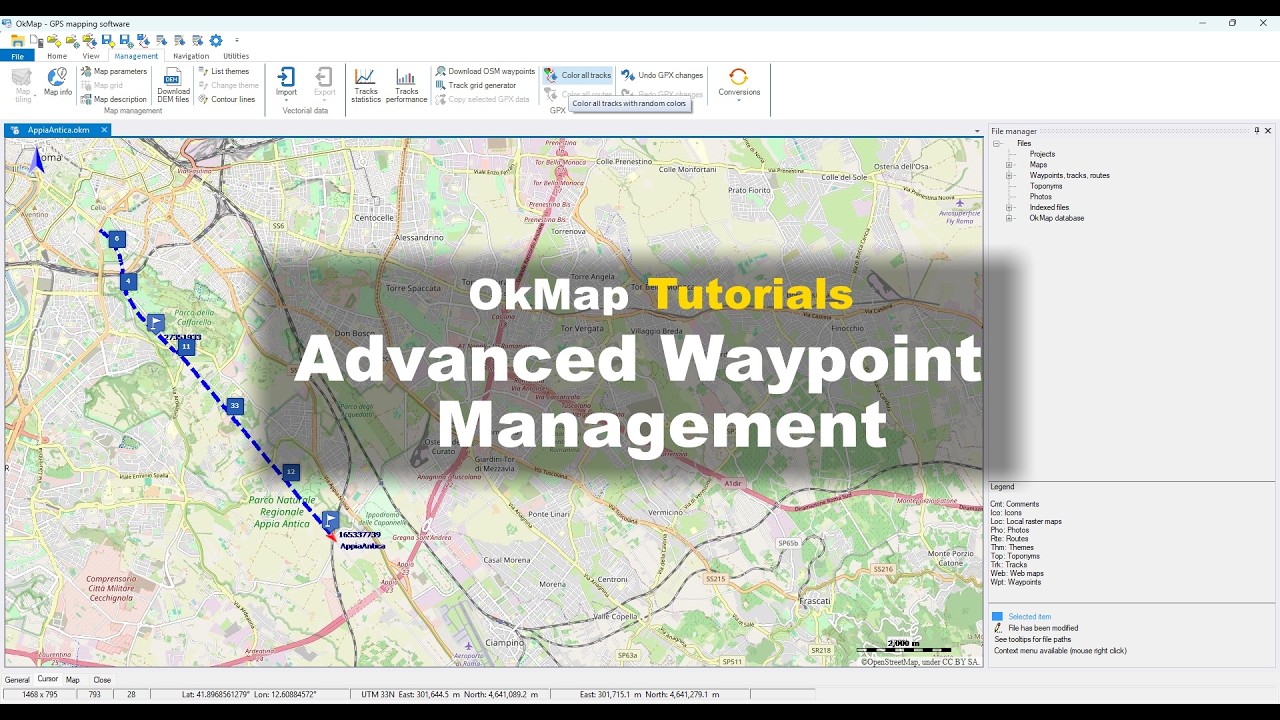
Tutorial on how to manage large numbers of waypoints with OkMap using clusters, filters, and search tools.
Download POIs and Waypoints from OpenStreetMap
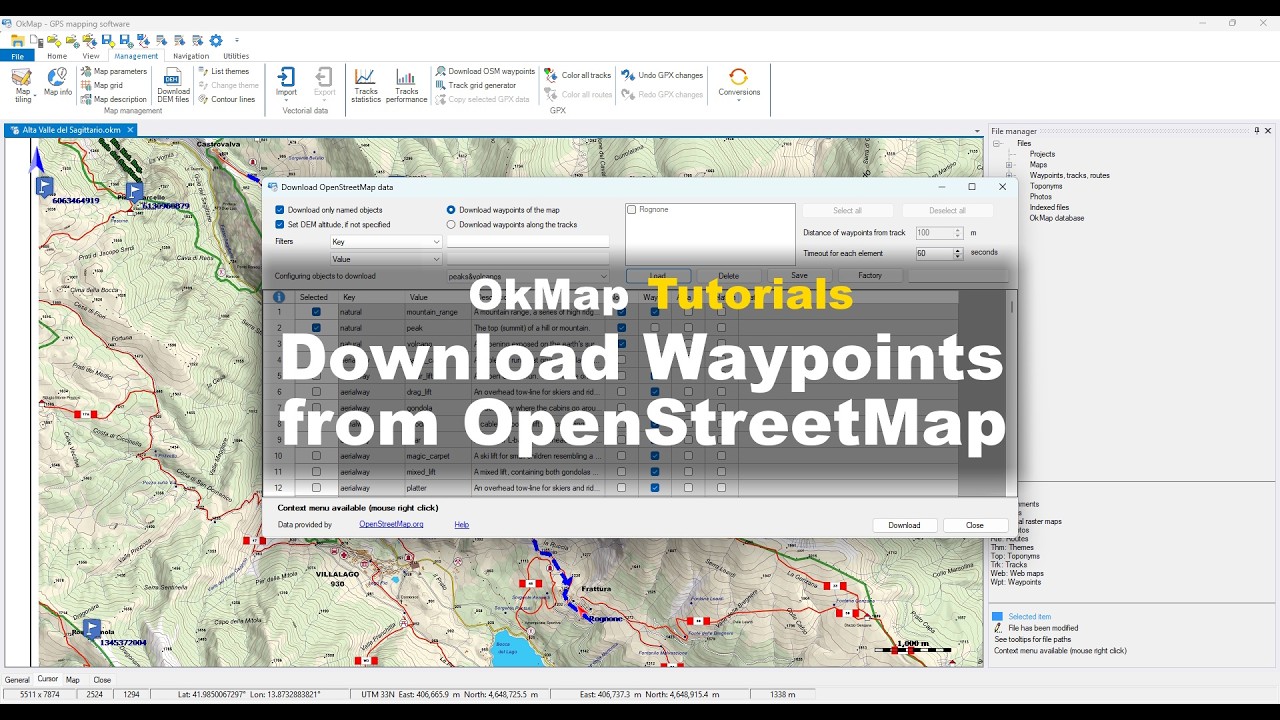
Tutorial on how to download POIs and waypoints from OpenStreetMap using OkMap.
Create a georeferenced photo album
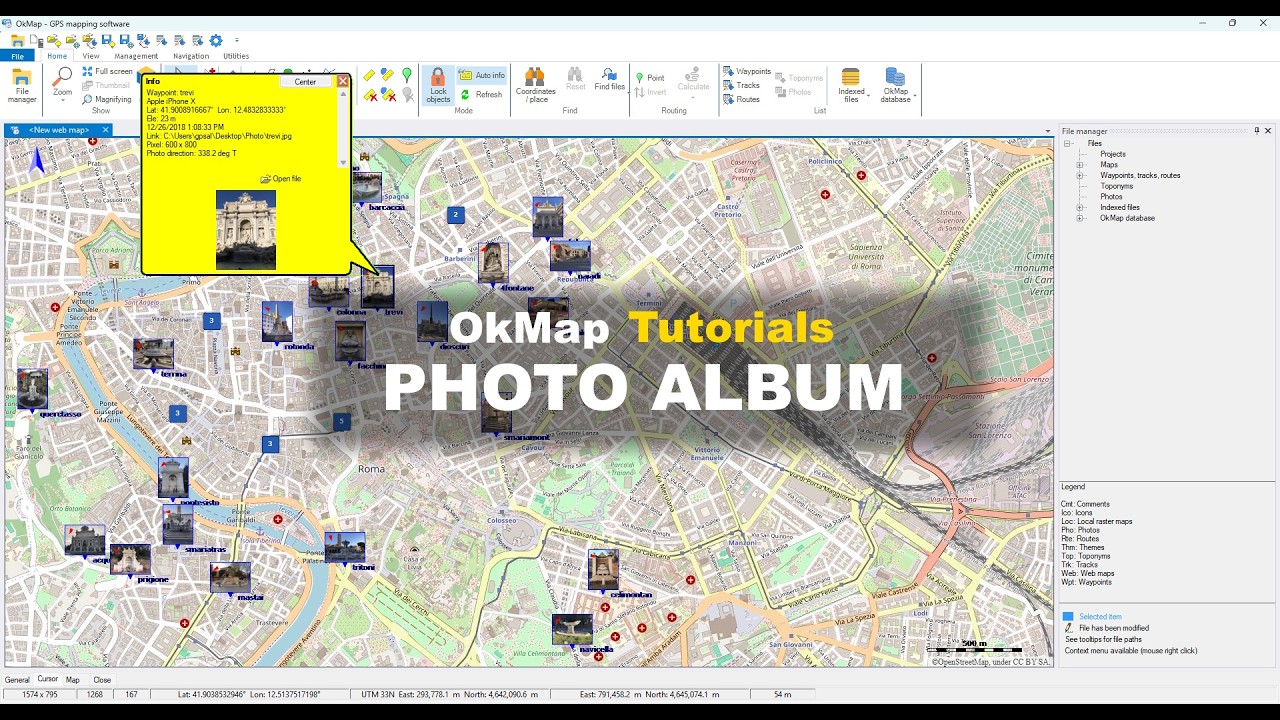
OkMap tutorial on how to create a georeferenced photo album from photos stored on your computer.
Data and project management
Discover OkMap tools for managing projects, maps, waypoints, tracks, and GPS data. This section brings together the functions for organizing files, viewing information, and managing the data of your mapping projects.
Managing map files, waypoints, tracks and data
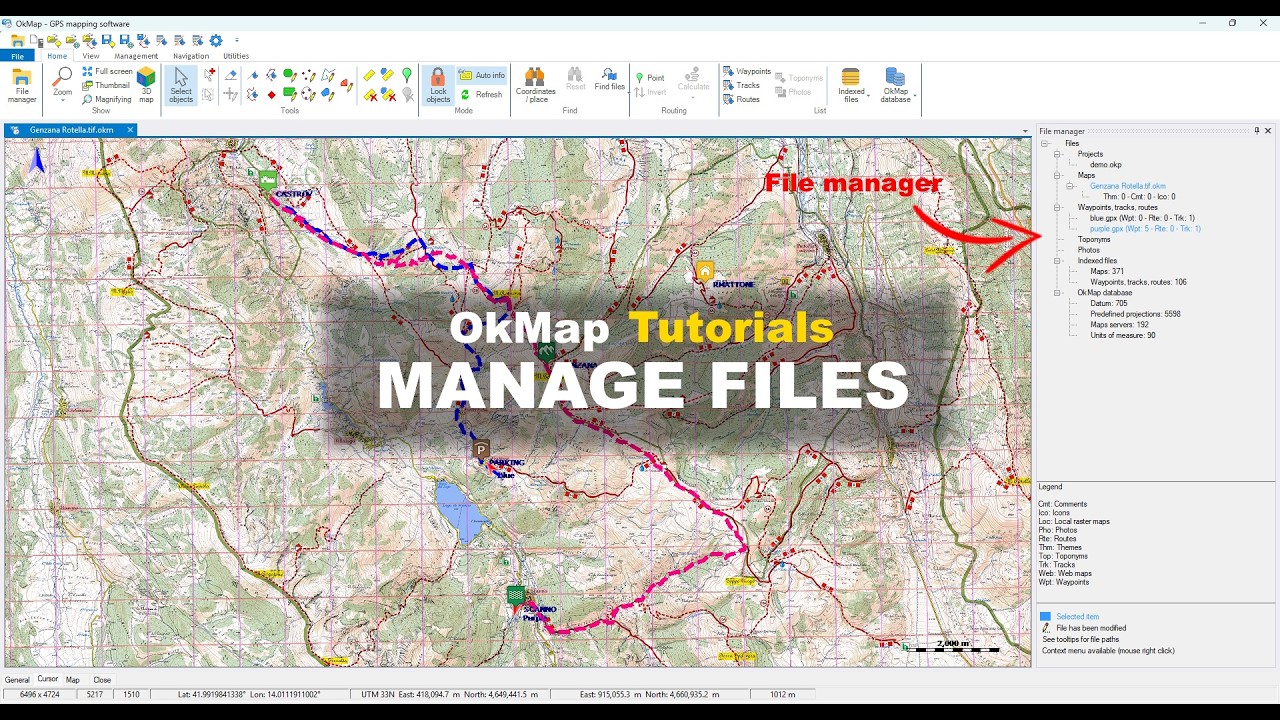
Tutorial on how to manage map files, waypoints, tracks, and data using OkMap.
Import and export maps and GPS data
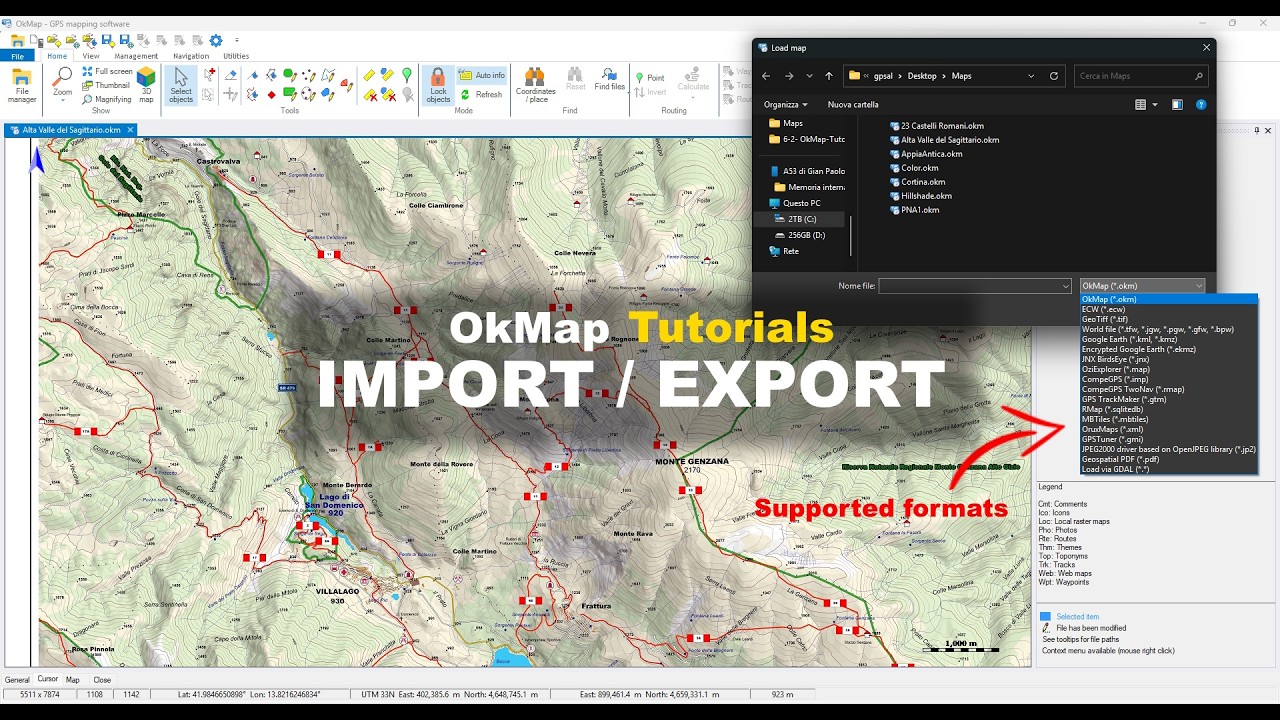
Tutorial on how to import and export maps and GPS data using OkMap.
Index and search GPS data files
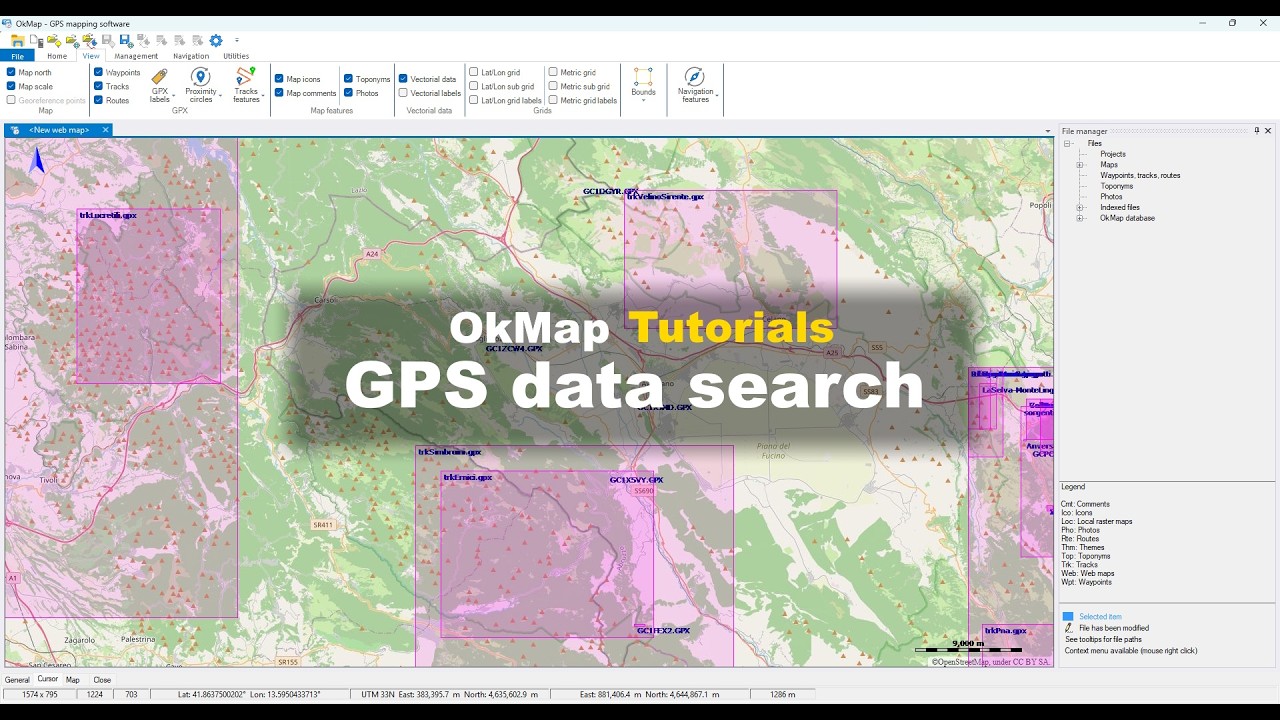
Tutorial on how to index and search GPS data files using OkMap.
Analysis and Measurements
Discover OkMap's cartographic tools to perform measurements, analyze terrain, and obtain detailed geographic information.
This section includes distance, azimuth, and area calculations, elevation profiles, and other cartographic analysis functions.
Measure Distances, Areas, and Azimuths on Maps
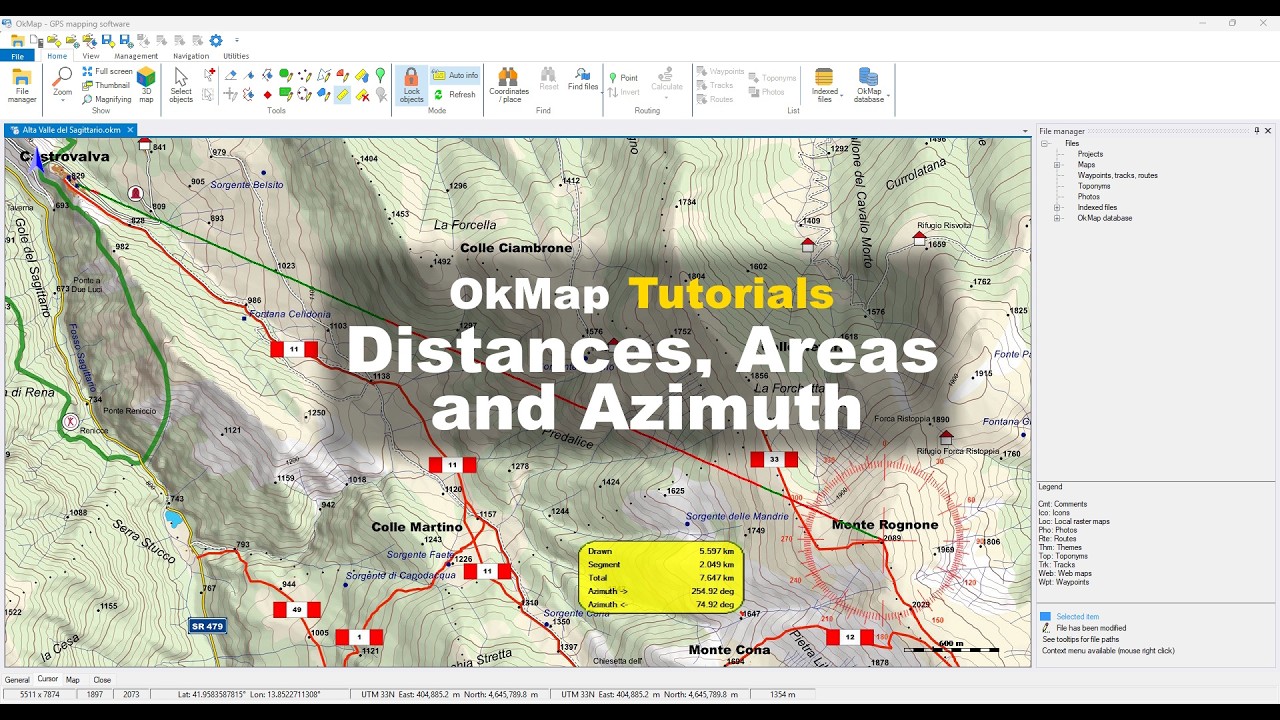
Tutorial on how to measure distances, areas, and azimuths using OkMap.
Do you want to apply these concepts with OkMap?
After watching the video tutorials, you can deepen your knowledge by reading the technical articles or download OkMap Desktop and work directly with maps, GPX tracks, waypoints, and GPS data.
Software for Windows - Complete PDF manual - Articles